
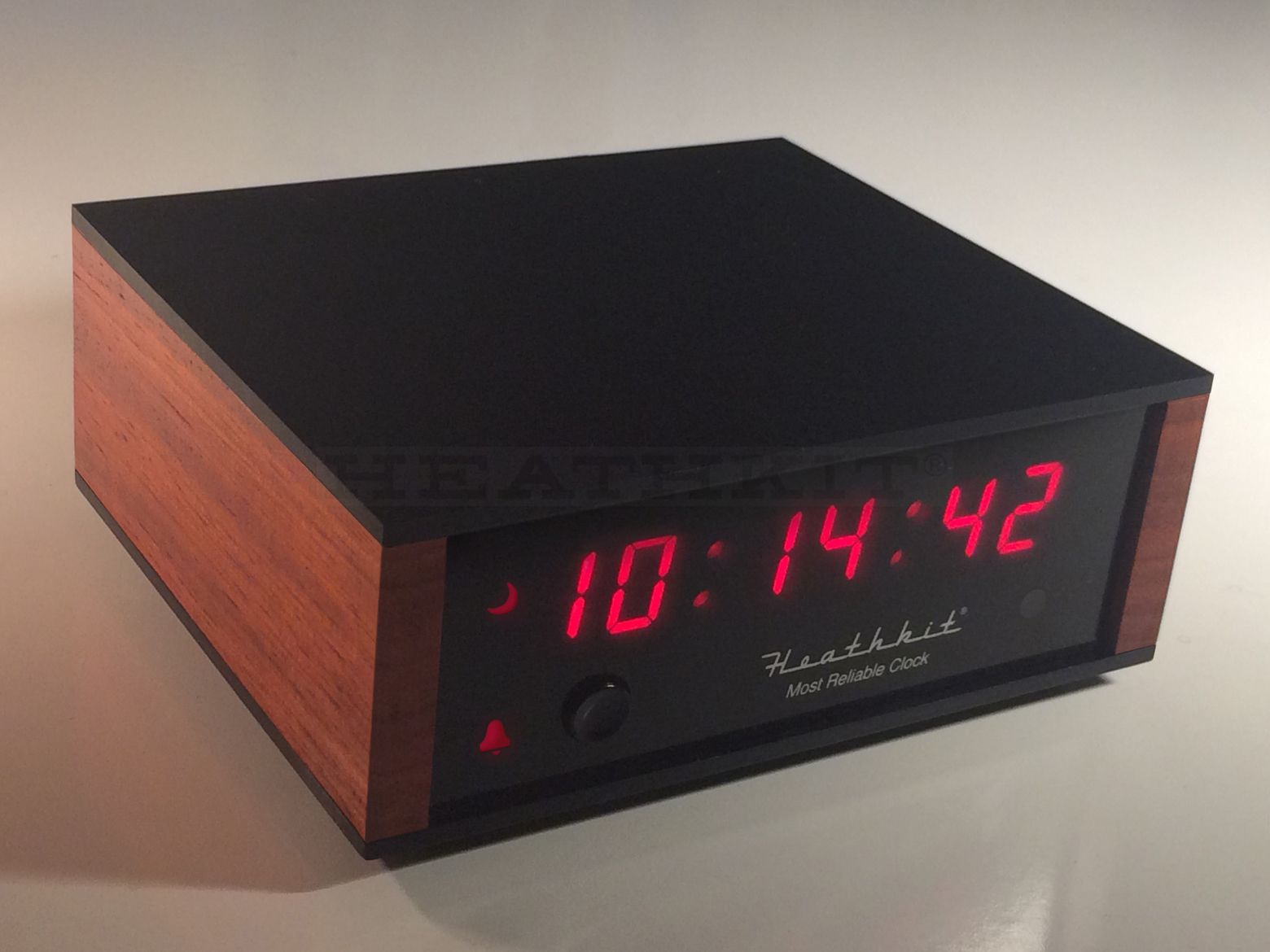
It is beautiful. The printed circuit board may be the highest quality I've ever seen.…
Telling LotW About My New Call
I need to tell LotW about my new call. Unfortunately the LotW FAQ is short and cryptic on this topic:
You can continue to access your old data records with your existing password. When you request a certificate for the new call, make sure to sign the request with the certificate for your previous call so that all your records will continue to be tied together.
Here are the steps (I’m on a Mac so the steps for your platform may be different):
- Go to http://www.arrl.org/tqsl-download and download TQSL.
- Start TQSL
- Select Callsign Certificate -> Request New Callsign Certificate
- Enter your new callsign and DXCC entity
- For QSO begindate I entered the date my new call was issued
- Click the Next button
- The next dialog box has fields for name and address. For me they contained data from my previous certificate.
- Click the Next button
- Enter your email address if it is not already filled in
- Click the Next button
- Enter a password if desired. Since I’m the only one who uses my computer I left it blank.
- Click the Next button
- Click the Signed radiobutton and select your old certificate.
- Click the FInish button
TQSL will then display:
Attempting to upload Certificate Request
Certificate Request uploaded with result “Started processing your Additional Certificate Request.
For call sign: K7RPM
For DXCC Entity: UNITED STATES OF AMERICA (291)
For QSOs not before: 2014-08-19 00:00:00
For QSOs not after: <none>
Your additional certificate request is accepted and awaiting further processing.
You will receive the certificate after it has beencreated.
Your certificate request processing is completed.”!
As expected, the new certificate arrived via email the next day:
- Drag the certificate attachment out of the email into a file folder.
- Start TQSL
- Click on the Callsign Certificates tab
- Click on Load a callsign Certificate
- The file/open dialog box will appear. Select the certificate file you saved in Step 1.
That’s it. You can also request ARRL to change your login username from your old call to your new one.

Related Posts

Thanks for posting this! I was floundering around trying to figure out what to do until I found your page. It’s clear, concise and works.
73,
Jan
KM6G